Choosing the right Pcap Touch screen starts with the job it must do. A kiosk in a bright lobby faces different demands from a compact control panel beside a machine. Finger accuracy, glove use, screen size, and daily operating hours all matter. So does the surface beneath the glass. A thick cover lens can change touch response, while water or electrical noise may affect performance. These details are easy to overlook on a specification sheet.
Interaction-design researcher Bill Buxton’s work offers a useful principle, paraphrased here: choose technology around the user’s task, not its novelty. That idea guides the seven tips ahead. They examine touch technology, display size, optical clarity, controller performance, environmental conditions, durability, and supplier support. Check how the panel responds at the edges. Test it under the lighting where it will actually be installed. Try the intended gestures, not only a single tap. Small tests can reveal a lot.
There is no universal best panel. A screen that feels quick in a quiet office may hesitate near motors or under a wet finger. I have seen specifications look reassuring, then leave practical questions unanswered. That is worth questioning. The right choice balances measurable performance with the way people will use the device. These tips provide a grounded starting point, while leaving room for a real-world test before purchase.
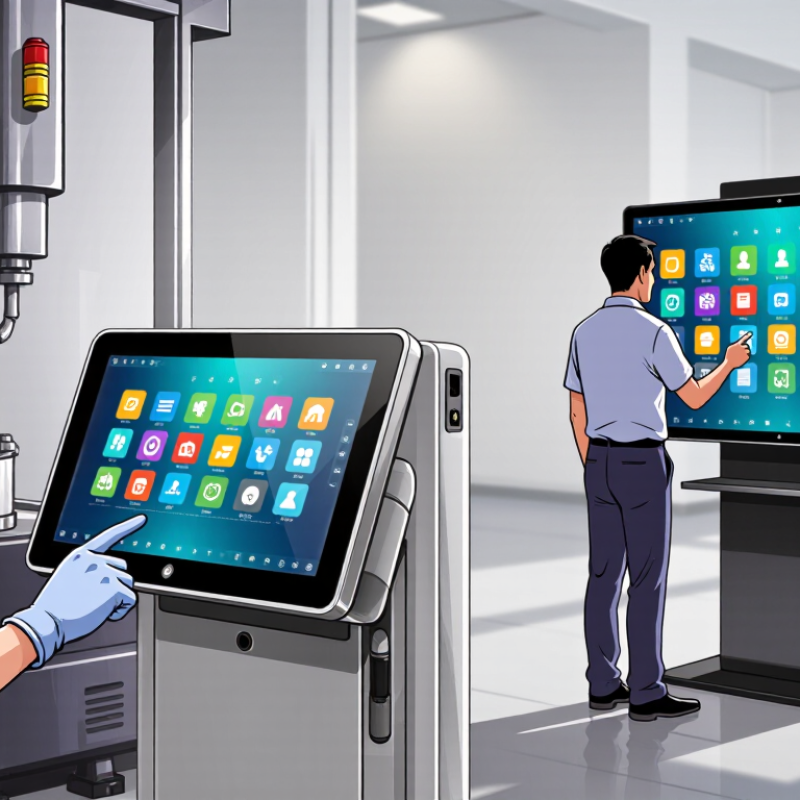
Tip 1: PCAP touch screens detect changes in an electrical field when a finger approaches the glass. This supports responsive multi-touch, but the full assembly matters. Thick cover glass, coatings, and nearby electronics can affect sensitivity. Ask for performance data based on your intended glass stack, not just the bare panel.
Tip 2: Map the actual environment before choosing a screen. Consider moisture, temperature swings, direct sunlight, dust, and electrical noise from motors or power supplies. A kiosk near a frequently opened door faces different conditions from a climate-controlled office. Small details matter. Also check whether users need gloves; some gloves work, while others may not register reliably.
Tip 3: Test the touch screen in its intended enclosure. A bare-panel bench test can be misleading because grounding, mounting, and cable routing may change behavior. Try ordinary tasks with dry and damp fingers, then repeat with the expected gloves. Test it in place. If touches jump, lag, or miss near the edges, adjust the design or configuration before production. No single setting suits every installation, and it is worth questioning an apparently successful test if it did not include real operating conditions.
Match the diagonal size to the operator’s viewing distance and task, not just the enclosure opening. A 10.1-inch, 1280 × 800 panel delivers about 149 pixels per inch. That can make small controls look crisp but harder to hit if the interface is not scaled well. For a kiosk showing wide charts, 16:9 may reduce wasted space. For a control panel with stacked readings, 4:3 or 16:10 can use the height better. Check the actual layout at the intended distance. A tidy specification sheet can still mislead.
Resolution should support legible text and clear touch targets, rather than simply maximize pixel count. The W3C’s WCAG guidance calls for text to remain usable when resized to 200%; it is a useful accessibility check for interfaces viewed on different panels. WebAIM’s 2024 Million report found detectable accessibility failures on 95.9% of tested home pages, a reminder that display choice alone cannot ensure readability. Test the interface on the real screen, with the real viewing angle and lighting. Glare, gloves, and hurried taps matter. I would not assume a higher resolution fixes poor scaling; it can make controls smaller. Check text size, contrast, and target spacing before finalizing the PCAP screen.
7 Tips for Choosing the Right PCAP Touch Screen
Compare touch accuracy on the actual interface, not just the specification sheet. A sharp crosshair should land consistently near screen edges and corners, even after repeated taps. W3C’s WCAG 2.2 sets a 24-by-24 CSS-pixel minimum for most interactive targets. That helps assess button usability, but it does not measure sensor precision. Keep those tests separate. A neat spec can still miss real-world use.
Response time matters during fast scrolling, drawing, and dragging. Jota and colleagues’ 2013 CHI study tested direct-touch latency across delays from 1 to 100 milliseconds and found that latency affected pointing-task performance. Ask suppliers how they measure latency, then test the complete display-and-controller setup. Watch a moving cursor or line; small delays are easier to notice there. Numbers alone can mislead.
For multi-touch, check the number of simultaneous contacts your application needs, then test that exact workload. Try spreading two fingers, rotating an image, and holding several points near the screen edges. Look for dropped contacts, jitter, or ghost touches. Test with the intended glass thickness and operating conditions, too. I would not assume a “10-point” rating guarantees smooth ten-finger input. It is worth checking twice.
Compare touch accuracy, response time, and multi-touch support. The chart shows suggested simultaneous-touch test counts for different use cases.
How to use these targets: Test at least 2 points for basic interfaces, 5 for common multi-finger gestures, and 10 when the application needs extensive multi-touch. Also verify the specified touch accuracy and response time under your actual operating conditions; performance varies by panel, controller, and setup.
A PCAP screen can look sharp on a bench and become hard to read beside a sunlit window. Compare measured luminance in nits and contrast under the lighting conditions your equipment will face. Ask for test results with the cover glass fitted, since added glass can reduce light transmission and increase reflections. Small details matter. A glossy surface may show every overhead lamp.
Durability depends on more than the touch panel. Check the cover glass thickness, edge sealing, and whether the interface works with the gloves operators actually wear. IEC 60529 classifies ingress protection: IP6X means dust-tight, while IPX5 tests resistance to water jets. IPX7 tests temporary immersion under specified conditions, commonly up to one metre for 30 minutes. These ratings are not interchangeable, and a lab result does not guarantee performance after years of wear.
Match protection to the real cleaning routine, not an imagined worst-case scenario. Ask the supplier for chemical-compatibility results for the cleaning agents you use; frequent wiping can damage coatings or seals. I would also inspect a sample in the intended enclosure. One thing is easy to overlook: a protective bezel can trap grime at the screen edge. Check it after cleaning. The IEC rating is useful, but it cannot replace testing the complete assembly in your environment.
Before selecting a PCAP touch screen, check the full system—not just the panel. Confirm the operating system, processor, graphics output, driver availability, and touch interface work together. A screen may display correctly yet fail to register ten-point input. Check whether it uses USB, I²C, or another interface, and verify the host provides the matching port and power. Test the intended cable length, too; a neat installation can still become unreliable when cables run near motors or power supplies. Small details matter.
Plan for the system’s working life. IDC’s Worldwide Quarterly Personal Computing Device Tracker reported 262.7 million PC shipments in 2024, a reminder that computing platforms and configurations keep changing. For a touch display expected to stay in service, ask how long firmware and drivers will be maintained, whether updates can be obtained without replacing the controller, and how calibration settings are backed up. Request written support timelines and a replacement-parts policy. Check, don’t assume. In a pilot, test cold starts, sleep and wake cycles, glove use if relevant, and repeated touches around the screen edges. One limitation is easy to miss: a short showroom test cannot reveal years of dust, heat, or connector wear. A documented compatibility check is less exciting, but more useful.
| Tip | What to Check | Practical Verification | Why It Matters |
|---|---|---|---|
| 1 | Confirm host-system compatibility | Check the touch controller’s supported operating systems, driver requirements, and host interface. Confirm whether the system recognizes touch input through a standard interface or needs a vendor-supplied driver. | A display connection alone does not guarantee that touch input will work. Compatibility depends on the touch controller, operating system, and available drivers. |
| 2 | Check display and touch connections separately | Identify the video connection required by the display, such as HDMI, DisplayPort, or eDP, and the separate data connection used by the touch controller, commonly USB or I²C. | Video carries the image; the touch interface sends touch coordinates. A system may support one connection but not the other. |
| 3 | Verify the host interface and cabling | Confirm the required connector, cable type, available host port, cable length, power needs, and any adapter or hub requirements. Test the complete cable path with the intended host. | Adapters, hubs, long cable runs, and insufficient power can affect reliability. A direct connection test helps expose issues before installation. |
| 4 | Match touch area and display geometry | Compare the touch sensor’s active area with the visible display area. Check the required orientation, coordinate mapping, mounting position, and calibration procedure. | Misalignment or incorrect orientation can cause touches to register in the wrong location, even when the panel and controller are functioning. |
| 5 | Validate multi-touch and application requirements | Ask how many simultaneous touch points the complete system supports, and test the required gestures and input behavior in the target operating system and application. | Multi-touch capability depends on the sensor, controller, operating-system support, and application. A specification for one component does not confirm end-to-end performance. |
| 6 | Test the actual operating environment | Evaluate the screen with the intended cover glass, gloves, moisture exposure, cleaning method, and electrical environment. Confirm supported operating conditions and any required touch-controller tuning. | Projected capacitive touch performance can vary with cover materials, water, gloves, grounding, and electrical noise. Testing the final assembly is more reliable than testing a bare sensor. |
| 7 | Review long-term support and serviceability | Request current technical documentation, driver and firmware update procedures, warranty terms, repair options, and written information about product availability and replacement planning. | Clear documentation and a defined support process help reduce downtime and make it easier to maintain the system over its intended service life. |
WhatsAppOffer Electronics Manufacturing All-in-One
PCBONLINE® is a registered trademark or service mark of pcb online limited or its affiliates.
Copyright © 2001-2024 Pcb Online Limited. All rights reserved