How to Choose a Touch Screen Kiosk in 2026
Choosing a Touch Screen Kiosk in 2026 means looking beyond the display. The right unit should fit its location, serve its users, and make common tasks feel simple. A bright screen may work well in a sunlit lobby but feel harsh in a dim clinic. A compact stand saves floor space, yet can leave users crowding one another. Details matter.
Design expert Don Norman wrote, “Good design is actually a lot harder to notice than poor design, in part because good designs fit our needs so well that the design is invisible.” That idea applies directly to kiosk selection: users should not have to guess where to tap or how to move forward. Look closely at screen height, text size, glare, response speed, and the path through each task. Test the interface with real users, not only with a product demo. Small snags show up fast.
Then consider what happens after installation. Ask how the kiosk connects to your existing systems, how software updates are handled, and who responds when a screen freezes during a busy shift. Check the enclosure, mounting options, warranty, and cleaning requirements against the actual environment. A kiosk near an entrance faces different conditions from one at a staffed reception desk. No checklist can predict every use case. That is worth admitting. The best choice balances usability, durability, integration, and support—not the longest feature list.
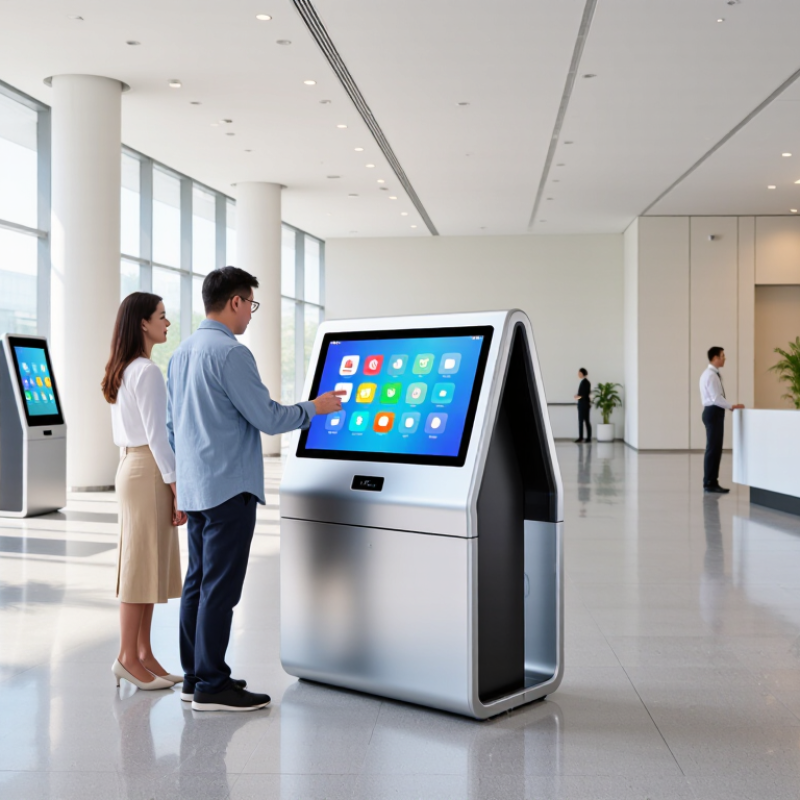
Define the Kiosk’s Purpose, Users, and Required Tasks
A touch screen kiosk should begin with a clear job, not a hardware shortlist. Is it for ordering meals, checking in visitors, finding a department, or completing a payment? Each task changes the interface, peripherals, and placement. A check-in kiosk may need a document scanner and a quiet, private screen. A busy food-ordering unit needs large buttons, clear modifiers, and a quick way to correct mistakes. Keep it obvious. Decide who will use it, too: first-time visitors, older adults, staff in gloves, or people carrying bags. Baymard Institute’s 2024 checkout research found that 18% of U.S. shoppers had abandoned an order because checkout was too long or complicated. That is a useful warning, not a kiosk-specific forecast.
Map the real task from arrival to completion. Note where users pause, what information they need, and when staff must step in. PwC’s 2024 Voice of the Consumer Survey reported that 52% of consumers had stopped buying from a brand after a bad experience. A confusing kiosk can create that kind of friction, even when the screen looks polished. Test the flow with actual users in the intended location. Watch them use it, rather than explaining the buttons. I would not assume a short task is automatically easy; unclear wording can still slow someone down. Check lighting, reach, noise, and queue space. The first draft may miss something. That is why observation matters.
Assess the Installation Site and Operating Conditions
Before choosing a touch screen kiosk, inspect the exact place where it will operate. A bright window can wash out the display, while overhead lights may create glare at certain hours. Check the screen from the user’s standing position, not just from a floor plan. Heat builds fast. Measure temperatures during the busiest part of the day, and note nearby heaters, doors, or direct sunlight. Dust, damp air, and frequent cleaning can also affect enclosure and screen choices. Match the kiosk’s environmental rating to real conditions, and confirm power and network access before fixing its location.
Tips: Watch the site during peak traffic. Check wheelchair access, cable routes, and space for maintenance. Take photos at different times of day; small details matter.
A kiosk near an entrance may face drafts, changing temperatures, and constant foot traffic. In a quiet lobby, reflections or poor Wi-Fi might be the bigger problem. Ask staff how often surfaces are cleaned and what products they use. Then test a sample unit on-site, if possible, with the intended content and brightness settings. I once underestimated afternoon glare; the screen looked fine in the morning. It was a useful reminder, though not a perfect test. Leave enough clearance for ventilation and service access, and reassess the setup after people begin using it.
Compare Screen Size, Hardware, and Accessibility Features
A touch screen kiosk should fit the task, not just the room. For a simple check-in form, a medium display may keep buttons readable without dominating a narrow lobby. A public directory needs more space for maps, search results, and clear touch targets. Consider how far people stand from the screen, too. A screen that looks generous on a desk can feel cramped across a counter. Test it in place.
Hardware affects the experience as much as screen size. Check that the processor handles the kiosk’s actual software smoothly, especially when pages include images or animation. A bright entrance may need a display that stays legible in strong ambient light. In a busy setting, a stable stand, protected ports, and easy-to-clean surfaces matter. Ask how components can be serviced and replaced. A low purchase price can hide inconvenient upkeep. I would not choose based on specifications alone; they rarely show the whole picture.
Accessibility deserves a hands-on review. Look for adjustable mounting options, strong color contrast, readable text, and controls that do not rely on tiny touch targets. Audio guidance and a headphone connection can help some users, while clear visual instructions help others. Check that essential tasks remain usable from a seated position. Invite people with different needs to try the interface, and watch where they hesitate. Small details matter. A test can expose flaws the design team missed, including ones it would rather not find.
Evaluate Software Compatibility, Security, and Connectivity
How to Choose a Touch Screen Kiosk in 2026
Start with software compatibility, not screen size. Confirm the kiosk supports your operating system, required applications, and planned update schedule. Ask how updates are installed and whether staff can manage them without interrupting service. Test the actual workflow: tap through a form, print a receipt, and recover from an app crash. A polished demo can hide awkward steps. Small details matter.
Treat security as an ongoing process, not a checkbox. Look for user permissions, encrypted connections, secure boot, and a clear plan for software patches. Check whether the kiosk can lock down settings and prevent casual access to the operating system. Ask who reviews security updates and how issues are reported. No checklist catches every edge case; it is easy to overlook this during a busy purchasing process.
Connectivity affects daily reliability. Match available ports and wireless options to your site, including Ethernet, Wi-Fi, Bluetooth, or peripherals such as scanners and payment devices. Check signal strength where the kiosk will stand, not just in an office nearby. Test it offline. Confirm which features keep working during a network outage and how data syncs once service returns. If possible, trial the setup during peak hours; real traffic may reveal delays that a quiet test misses.
How to Choose a Touch Screen Kiosk in 2026
Evaluate software compatibility, security, and connectivity alongside long-term support.
These suggested weights provide a starting point for comparing kiosk options, not results from an industry survey. Adjust them to fit your deployment, software environment, and security requirements.
Review Vendor Support, Maintenance, and Total Cost of Ownership
When comparing touch screen kiosks in 2026, look beyond the quoted purchase price. Ask vendors how quickly support responds, whether technicians can diagnose faults remotely, and which hours their help desk covers. A fast reply is not the same as a repaired kiosk. Confirm typical repair times and whether common replacement parts are stocked locally.
Maintenance affects the total cost of ownership. Check warranty exclusions, software update fees, and the expected service life of the screen and other components. Budget for cleaning supplies, connectivity, installation, and occasional repairs. A kiosk in a bright lobby may need a more readable display; one near an entrance may collect dust and fingerprints faster. Small details add up. Downtime does too.
Request a written maintenance schedule and a clear process for escalating unresolved issues. Ask what happens if a replacement part is delayed, and who pays for onsite service. Then estimate costs over several years, including staff time spent restarting or cleaning units. A forecast is still a forecast. Pilot a kiosk in the actual setting, track support requests and downtime, and revisit the estimate when real usage differs from your assumptions.


 Phone
 WhatsApp
 Email